CasaOS on macOS with External Drives
How to mount external drives (SSD or HDD) to a CasaOS instance installed on a Mac
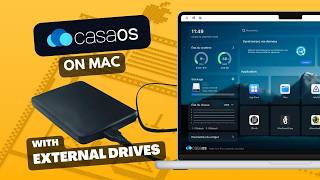
Previously, I wrote about how to install CasaOS on macOS, both as a written guide and in a video. I received several similar questions, such as:
- Any way to mount external volumes? Without volumes, it is useless. Please someone help.
- How can I share my actual hard disks on CasaOS?
- Thanks for the tutorial, it works great. How do I configure an external USB HDD? Thank you.
- It is working perfectly, but we have one “big” problem. I have three other external drives and I couldn’t mount them all into CasaOS.
Basically, many of you wanted to know how to mount external drives to CasaOS on macOS. That makes sense, because Apple charges a premium for large internal storage, and it’s usually much cheaper to expand your homelab storage using external drives.
Accessing external drives from CasaOS on macOS is a bit tricky. That’s because the CasaOS instance running on macOS is virtualized, not fully native. However, that doesn’t mean mounting external drives is impossible.
Enough chit-chat—let’s get started!
Not in the mood for reading? Watch the video instead.
Requirements
Configuration Steps
- Open your favorite Terminal app.
- Check the status of your
colimaservice usingcolima status. If it’s running, stop it with the following command:
colima stop- Attach your external drive (SSD or HDD). It’s recommended to use a drive formatted as APFS or HFS.
- Create an empty directory dedicated to CasaOS, for example
casaos-data, on your external drive.
# Replace ExternalSSD with your actual external drive name
mkdir -p /Volumes/ExternalSSD/casaos-data- Edit the
colima.yamlconfiguration file using your favorite text editor.
open ~/.colima/default/colima.yaml- Locate the
mounts: []section and update it. Add your$HOMEdirectory as the first entry, followed by your external drive paths. Below is an example with one external drive.
# Configure volume mounts for the virtual machine.
# Colima mounts the user's home directory by default to provide a familiar
# user experience.
#
# EXAMPLE
# mounts:
#   - location: ~/secrets
#     writable: false
#   - location: ~/projects
#     writable: true
#
# Colima default behavior: $HOME is mounted as writable.
# Default: []
mounts:
  - location: /Users/junian
    writable: true
  - location: /Volumes/ExternalSSD/casaos-data
writable: true- Note: Don’t forget to replace
/Users/junianwith your own$HOMEpath and/Volumes/ExternalSSD/casaos-datawith the path to your external drive. - Save the
colima.yamlfile and return to your Terminal. - Start the
colimaservice again.
colima start- Open http://localhost/ in your favorite browser and log in to your CasaOS account.
- Open the File Explorer inside CasaOS. Click ROOT in the sidebar, and you should see your external drive listed there.
- You can store any files (movies, music, photos, documents, etc.) on the drive. Files are accessible from both CasaOS and macOS.
- Finally, have fun with it!
Video

Conclusion
That’s how you mount external drives to your CasaOS instance on macOS. It’s a bit of a hassle at first, but it’s actually quite easy once you know the steps.
As usual, if you have any questions or a better method, feel free to leave a comment below. Thanks for reading, and see you next time!