Turn Off Dahua CCTV NVR or DVR/XVR Beeping Noise
How to disable or stop Dahua NVR or DVR/XVR beeping / buzzer sound caused by a "No Disk" issue
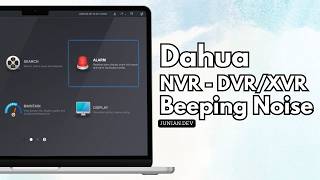
One night, my Kris XVR unit—a Dahua white-labeled product—suddenly started beeping nonstop every few seconds.
The sound was something like: “beep … beep beep … beep …”.
At first, I didn’t know what caused it, so I got out of bed and unplugged the power from my Dahua XVR.
Not in the mood for reading? Watch the video instead.
The next morning, I powered it on again, and the loud beeping noise was still there.
I opened the admin web dashboard and saw a “No Disk” notification.

My suspicion was that the hard drive (HDD) inside the XVR was corrupted or broken, causing the device to think no HDD was installed. The best solution is, of course, to replace the HDD with a new one. However, I didn’t have a spare at home, so I ordered one online.
While waiting for the replacement HDD to arrive, I still wanted to access the security camera feeds. So I kept the device powered on—but I didn’t want to hear the buzzer noise all the time. I decided to turn it off temporarily.
Here are the steps I followed to turn off the beeping noise on a Dahua XVR:
- Open the Dahua web dashboard. For example, mine is assigned the IP address
192.168.1.3. Yours may vary depending on your network settings. - Log in using your admin account.

- If a dialog showing the “No Disk” message appears, click the
OKbutton. - Click the Alarm section.

- Click the Exception section in the left sidebar.
- Choose one of the following methods based on your preference.
Method 1: Disable the No Disk Event Exception
- Uncheck the Enable checkbox.
- Click the
OKbutton.

Method 2: Keep the No Disk Event Enabled and Disable Only the Buzzer
- Click the
Morebutton. - Uncheck the Buzzer checkbox.
- Click
OKto close the More dialog. - Click
OKin the bottom-right corner to apply the changes.

You can use either Method 1 or Method 2 to turn off the beeping noise. Use Method 2 if you still want to log No Disk exception events while disabling only the buzzer.
Video

Conclusion
That’s all you need to do to turn off the beeping noise on a Dahua NVR or DVR/XVR. Once you have the HDD replacement, simply install it and re-enable the alarm if needed.
As usual, if you have any questions or a better method, feel free to leave a comment below. Thanks for reading, and see you next time!
