Disable macOS Auto Update
How to stop macOS from automatically downloading and installing new software updates.
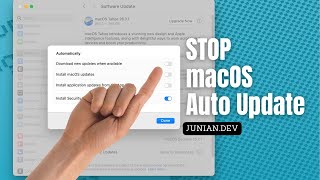
Most of the time, it’s recommended to update macOS to the latest version for better security and new features.
But sometimes the update itself can be problematic, like the recent macOS 26 Tahoe.
If you don’t want macOS to automatically download new versions, you can disable it in System Settings.
Not in the mood for reading? Watch the video instead.
Here’s how to do it:
- Open System Settings.app by clicking the Apple logo
→System Settings… - Go to the
Generalsection in the sidebar. - Click
Software Updateon the right side. - Click the
ⓘicon next toAutomatic Updates. - Uncheck
Install macOS updatesto stop automatic installation. - Uncheck
Download new updates when availableto stop automatic downloads. - Click
Donewhen you’re finished.

That’s it! The next time there’s a new update, macOS won’t download or install it automatically. You’ll have full control over whether to stay on your current version or upgrade to the new one.
Video

Conclusion
As usual, if you have any questions or a better method, leave a comment below. Thanks for reading, and see you next time!