How to Disable Liquid Glass on macOS Tahoe (macOS 26)
Not a fan of the new Liquid Glass transparency in macOS 26 (Tahoe)? Here’s how I made my Mac UI solid and easier on the eyes.
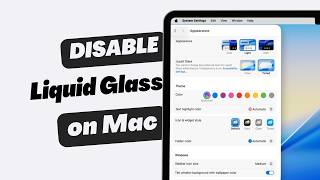
When Apple introduced the new Liquid Glass look in macOS 26 (Tahoe), my first reaction was, “Wow… that looks fancy.”
My second reaction after using it for a few days: “Okay, I can’t see what’s written there.”
Don’t get me wrong—it looks modern and sleek. But sometimes I just want my UI to be solid and easy to read, especially when I’m working long hours.
If you feel the same way, here’s how to tone it down—or straight up disable it.
Not in the mood for reading? Watch the video instead.
Method 1: Reduce Transparency with Tinted Mode
This is the lighter tweak to tone down Liquid Glass. By default, it uses Clear mode, meaning it’s as transparent as glass. But there’s another option called Tinted.
Think of it like the frosted glass used for bathroom windows.
To switch to Tinted mode, follow these steps:
- Open System Settings
- Go to Appearance in the left sidebar
- Under the Liquid Glass section, select Tinted

This reduces the transparency slightly. The UI becomes a bit more readable, but in my opinion, it still very much feels like Liquid Glass.
Better? Yes. Fully solid? Not really.
Method 2: Fully Reduce Transparency (The Real Fix)
If you want solid colors in your macOS UI, this is the setting that actually makes a difference. Follow these steps to enable macOS Reduce Transparency:
- Open System Settings
- Go to Accessibility from the sidebar
- Click Display
- Find Reduce Transparency and enable the checkbox


Once you toggle that option, the change is immediate.
- No more see-through menus
- No more blurry background bleed
- UI elements become solid
- Everything feels calmer
Honestly, this is the setting that made macOS Tahoe usable again for me.
What It Looks Like After
With Reduce Transparency enabled:
- Windows have solid backgrounds
- Menus are easier to read
- The overall interface feels snappier and less “glassy”
It’s not flashy—but it’s practical. And I’ll take practical any day.
Video

Final Thoughts
Liquid Glass is one of those features that looks amazing in marketing screenshots but isn’t for everyone in daily use.
If the transparency feels distracting or hard on your eyes, just enable Reduce Transparency and move on with your life. It takes less than a minute and makes a big difference.
That’s it for today. As usual, if you have any questions or a better method, leave a comment below. Thanks for reading, and see you next time 👋


