Enable Three Finger Window Drag on macOS
How to use three finger drag to move windows comfortably on macOS.
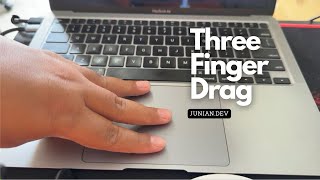
If you’re using a trackpad on your Mac, you’re probably familiar with dragging windows using it. Normally, you press and hold the trackpad with one finger, then use another finger to move the window.
While this method works fine, there’s actually a better and more comfortable way to drag windows. It’s called three-finger drag.
Not in the mood for reading? Watch the video instead.
As the name suggests, three finger drag lets you move windows on macOS by simply placing three fingers on the trackpad, no pressing or clicking required.
Follow these steps to enable it:
- Choose Apple menu
→System Settings(orSystem Preferenceson older macOS versions). - Click
Accessibilityin the sidebar. - Select
Pointer Control(orMouse & Trackpadon older versions). - Click the
Trackpad Options…button. - Turn on
Use trackpad for dragging(orEnable draggingon older versions). - Choose
Three Finger Dragfrom theDragging styleoptions. - Finally, click
OKto apply the changes.

Now, place three fingers on your trackpad and try moving a window, you’ll notice how smooth and effortless it feels!
Video

Conclusion
As usual, if you have any questions or a better method, leave a comment below. Thanks for reading, and see you next time!


